
Account Help for Current Students, Faculty and Staff
Password help
Requires two different Multi-factor Authentication methods registered

All Other Account Issues
Please contact the Solution Centre
>> Seeing these prompts when logging in?
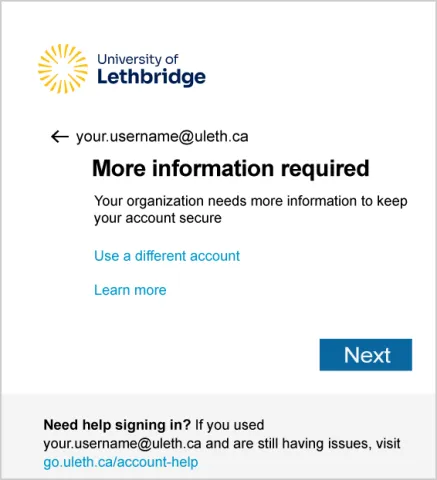
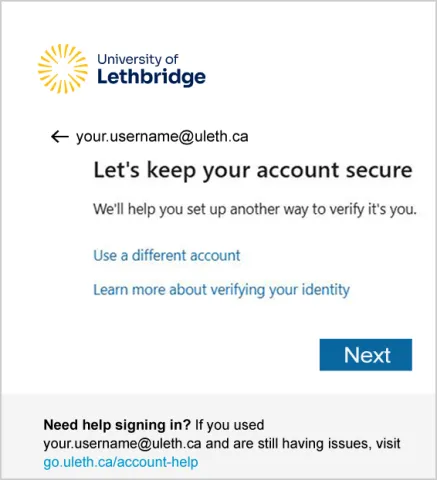
Please add some additional ways to verify your account.
Set up the Microsoft Authenticator App
- Install the Microsoft Authenticator app from the iOS or Android app store then select "Next"
- Follow the instructions on how to set up your account
- Scan the QR code on the screen with your phone, press "Next"
- Approve the notification on your phone, press "Next"
- Repeat the process by adding a phone number or click 'I want to set up a different method' to add an external email to your account.
- You will see a summary of your setup methods. Press "Done" to finish MFA setup. You can now log in to your university account.
For a step by step walk through, see our MFA Setup Instructions
To manage your account recovery and multi-factor authentication methods:
Add Method(s)
- Go to your Security info page at mysignins.microsoft.com/security-info
- If prompted, sign in and perform multi-factor authentication
- Click "add sign in method"
- Select the method (text, external email, phone, Authenticator app)
- Follow the prompts to complete the process
- Repeat this process to add your second method
Remove Method(s)
- Go to your Security info page at mysignins.microsoft.com/security-info
- If prompted, sign in and perform multi-factor authentication
- Next to the method you would like to remove, click the 'delete' button
- Current students, faculty and staff are required to have a minimum of two methods
Change Default MFA Method
- Go to your Security info page at mysignins.microsoft.com/security-info
- If prompted, sign in and perform multi-factor authentication
- Next to 'Default sign-in method:' click 'Change'
- Select the method you would like to use to perform MFA and then click 'Confirm'
Important: Information added for your phone number or email address is not shared with the University. The only people that can see this information are you and your administrator.
For more details about multi-factor authentication visit the Multi-Factor Authentication KB article.
Error message | Possible solution |
| Your account has been locked. Contact your support person to unlock it, then try again. | Please contact the Solutions Centre to find out why your account is locked. This could be related to a too many wrong password attempts, us needing to keep your account secure due to someone trying to get in, or a change in your university community status. |
Your account is not enabled for password reset. | Please contact the Solutions Centre to reset your password, You might not be enabled for the password reset feature due to your current University status or that you are a new user and havent set this up yet. Unfortuantely the Contact an administrator link does After you click the link, an email is sent to your organization's help desk or administrator, letting them know you want to reset your password. |
We could not verify your account. | Please contact the Solutions Centre to reset your password. For information registering for password reset after you are back on your device, please see the other articles on this page. |
Update your browser Your browser is not supported or up to date. Try updating it or download and install the latest version of Microsoft Edge. | We recommend you update to the latest version of your browser, or directly access https://aka.ms/mysecurityinfo from another device. This error appears if the page can't render because the user tried to access https://aka.ms/mysecurityinfo from an unsupported browser, or an unsupported embedded browser or web view tried to direct the user to the page. |
Please contact your administrator. We've detected that your user account password is not managed by Microsoft. As a result, we are unable to automatically reset your password. | Check that you entered the correct user.name@uleth.ca Check that the website is correct. Please contact the Solutions Centre to reset your password. This occurs when the username entered is associated with a organization that manages your password and does not use the "Can't access your account link". |